


Cart line attributes (also called line item properties) are a simple but powerful way to attach extra information to items as they are added to a Shopify cart. You can use them for things like warranties, engraving text, internal SKUs, and more. Cart Line Attributes will appear in your Admin Order details like this:
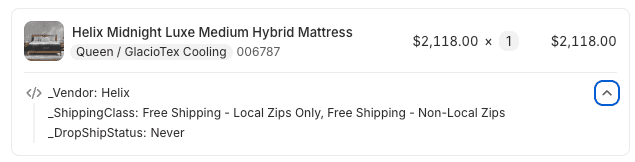
In this post, you will see how to:
Add cart line attributes using the Shopify Liquid theming engine
Control whether attributes are visible to customers or kept hidden using an underscore prefix
Pass a product metafield value into the cart as a line attribute
What Are Cart Line Attributes?
When a customer adds a product to the cart, Shopify creates a line item. In addition to the product, variant, and quantity, you can attach extra key–value data to that line item. These key–value pairs are called line item properties or cart line attributes.
For example:
Warranty: 2 yearsEngraving: Happy Birthday!_internal_sku: ABC-123-RED(for internal use only)
These attributes travel with the line item through the cart and checkout, and are visible in the order details in the Shopify admin.
How Visibility Works: The Underscore Convention
Most modern Shopify themes follow a simple convention for deciding whether to show or hide a given line attribute in the cart UI:
Visible attributes: Keys without a leading underscore, e.g.
Warranty,EngravingHidden attributes: Keys with a leading underscore, e.g.
_internal_sku,_source_tag
In other words:
properties[Warranty]→ visible in the cart for the customerproperties[_internal_sku]→ typically hidden from the customer-facing cart view, but still available in the order
This is a theme-level convention: the data is always stored with the order, but most themes only render properties whose keys do not start with _. You can rely on this pattern if you want to keep certain attributes for internal use only.
The Core Mechanism: properties[YourKey]
To attach attributes to a line item, you add <input> fields inside your product form. Their name attribute must follow this pattern:
properties[YourKey]When the customer clicks “Add to cart”, any values from these inputs are submitted along with the variant ID and quantity, and Shopify stores them on the resulting line item.
At a minimum, your product form in Liquid might look like this:
{% form 'product', product %}
  <!-- Variant selector, quantity, etc. -->

  <!-- Line attributes go here -->

  <button type="submit">Add to cart</button>
{% endform %}
Every line attribute input must be placed inside this form so its value is submitted with the add-to-cart action.
Example: Visible Line Attribute from a Product Metafield
Now let’s say your product has a metafield that stores a warranty description, such as:
Namespace:
customKey:
warranty
In Liquid, you can access this metafield as product.metafields.custom.warranty. To pass that value into the cart as a visible line attribute called Warranty, you can add a hidden input inside your product form:
{% form 'product', product %}
  <!-- Your regular product form fields -->

  <input
    type="hidden"
    name="properties[Warranty]"
    value="{{ product.metafields.custom.warranty }}"
  >

  <button type="submit">Add to cart</button>
{% endform %}
What this does:
Key:
Warranty(visible to customers in most themes)Value: Whatever is stored in
product.metafields.custom.warrantyfor the current product
When the customer adds the item to the cart, they (and you) will see something like:
Product Name
Warranty: 2 years manufacturer warranty
Example: Hidden/Internal Line Attribute from a Product Metafield
Now imagine you store an internal SKU or some internal tagging data in another metafield:
Namespace:
customKey:
internal_sku
Liquid access: product.metafields.custom.internal_sku
To attach this to the cart as a hidden attribute, prefix the key with an underscore. For example:
{% form 'product', product %}
  <!-- Your regular product form fields -->

  <input
    type="hidden"
    name="properties[_internal_sku]"
    value="{{ product.metafields.custom.internal_sku }}"
  >

  <button type="submit">Add to cart</button>
{% endform %}
Here’s what happens:
Key:
_internal_sku(leading underscore)Value: The internal SKU from your metafield
Visibility: Most themes will not show this in the cart to customers, but it will still be attached to the line item and visible in the order details in the admin.
Combining Multiple Attributes
You can mix visible and hidden attributes freely. For example, inside the same product form:
{% form 'product', product %}
  <!-- Regular product inputs (variant, quantity, etc.) -->

  <!-- Visible warranty attribute -->
  <input
    type="hidden"
    name="properties[Warranty]"
    value="{{ product.metafields.custom.warranty }}"
  >

  <!-- Hidden internal SKU attribute -->
  <input
    type="hidden"
    name="properties[_internal_sku]"
    value="{{ product.metafields.custom.internal_sku }}"
  >

  <button type="submit">Add to cart</button>
{% endform %}
This will result in a line item that has both a customer-facing warranty label and an internal SKU your team can use downstream (in reporting, fulfillment, or integrations).
Tips and Gotchas
Always put attribute inputs inside the product form. Otherwise, they won’t be submitted with the add-to-cart request.
Match your metafield namespace and key. Replace
customandwarranty/internal_skuwith the actual namespace and key you’ve configured in your store’s metafields.Don’t overuse hidden attributes. They’re great for internal tracking, but if the information helps the customer understand what they’re buying (e.g., warranty, personalization), make it visible.
Check how your theme renders properties. Most Online Store 2.0 themes follow the underscore convention, but if you customize your cart template, ensure that it skips properties whose keys start with
_.
Wrapping Up
By using simple properties[YourKey] inputs in your Liquid product forms, you can attach useful contextual data to each cart line item. Prefixing keys with _ keeps attributes hidden in the frontend cart while still storing them on the order, and leaving off the underscore makes them visible to customers.
Combine this pattern with product metafields, and you get a flexible, low-friction way to pass structured product data directly into the cart and through to checkout and orders—without needing an app or complicated JavaScript.
Where to read more
Shopify's reference for the form tag and the line_item object cover how line item properties are submitted and read back in Liquid. If you need help wiring product data into cart and checkout flows, see our ecommerce development services.